TrainingPeaks Virtual Workout Modes
Once you’ve begun your workout, your screen will display the planned intervals in two ways:
- A list of intervals on the left side of the screen; this can be toggled on/off using the W-key.
- A workout graph along the bottom of the screen; this can be toggled on/off using the G-key.
As you complete the workout, the graph along the bottom will be overwritten with your actual output, so you can immediately see exactly how far through the workout you are.
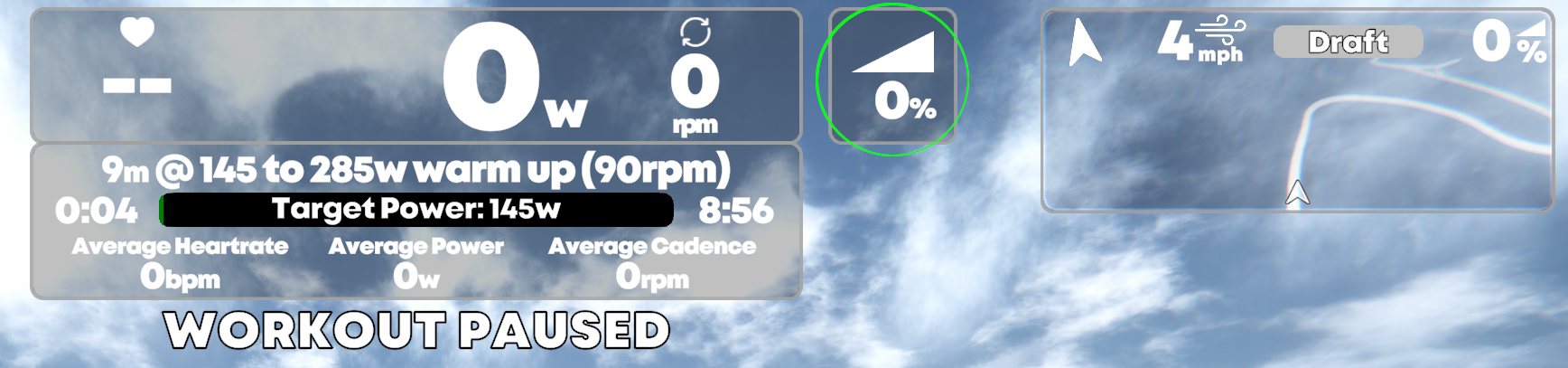
Additionally, at the top center of the screen, you will see all the real-time data for your ride.
The top window contains instant heart rate, power, and cadence. The window below this contains the current interval target wattage and cadence, as well as average heart rate, power, and cadence for the active interval. At each interval change, these averages reset.
If you hover your mouse over the bottom middle of the screen, additional controls will appear:
From left to right, the keys are:
- Top Row (Actions): Tactically Position Left, Tactically Position Right
- Middle Row (General Actions): Send Chat Message, Change View, Take a Screenshot*, Mark Lap, Change Route, Join Another Rider, Take a Break
- Bottom Row (Workout Actions): Previous Element, Pause, Next Element, Decrease Difficulty, Change Resistance Mode, Increase Difficulty
*Please note that screenshot functionality is only available on devices with sufficient free memory.
When ERG mode is disabled, a slope modifier option is also shown next to the data window to allow each rider to set the constant resistance the trainer gives. This can be increased and decreased by utilizing the (-_) and (+=) keys located directly next to the (return) / (backspace) key along the number-key line of your keyboard.
As you progress through your intervals, you will pass through colored roadside flares marking the start of each interval!
Focus Mode
We have also enabled Focus Mode, which minimizes distractions, showing only your interval data.
You will choose your desired Mode before starting your ride, in the Workout Settings: